
Appearance
Streamer Privacy
The dashboard has several tools available for streamers to take control of their channel's privacy.
INFO
This page covers information specific to streamers. If you're looking for general Streamcord account privacy options, see Account Privacy.
Self-Service Privacy Controls
If you stream on Twitch, the dashboard lets you control whether Streamcord users can create notifications for your channel, and lets you remove existing notifications for your channel.
To use these controls, you need to connect your Twitch account to the dashboard. Once it's connected, go to the Account Connections page (Account → Connections), to find the privacy options for your channel.
INFO
These privacy controls are only available for Twitch right now. If you need notifications removed or your channel restricted on YouTube or Kick, contact the support team in Streamcord's Discord server or email [email protected].
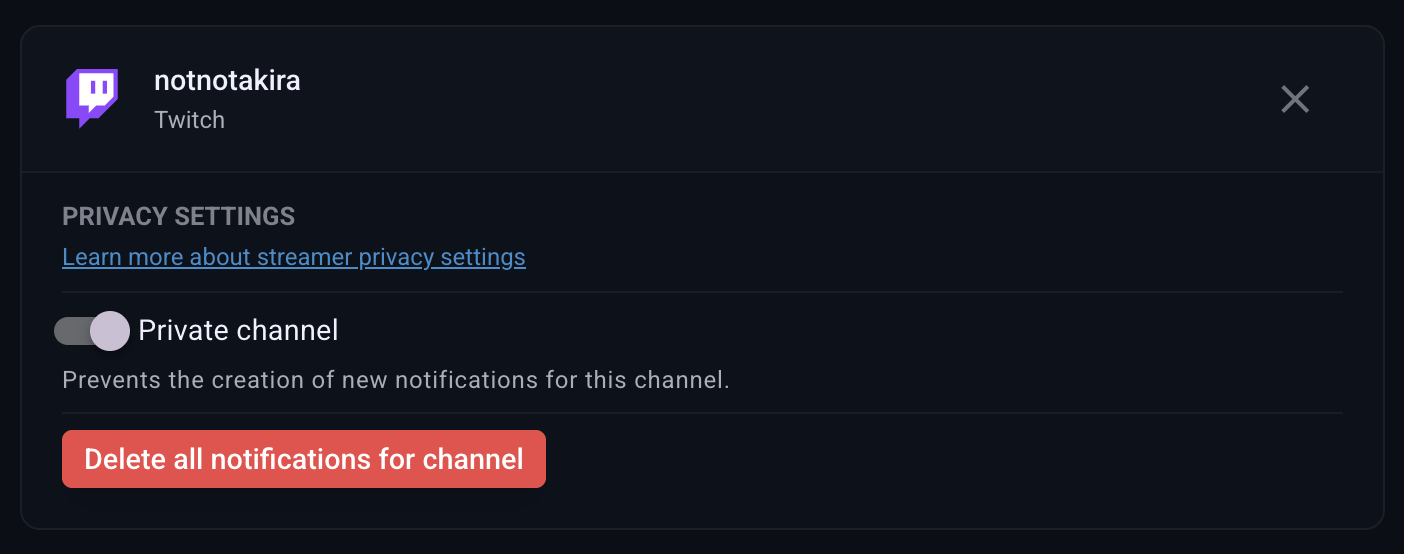
Make your channel private
Making your channel private stops anyone, including you, from creating new stream notifications for it. Notifications that already exist for your channel keep working as normal.
This is useful if you don't want your channel notified in servers you're not part of, without deleting notifications server owners have already set up.
Delete all notifications for your channel
This removes every stream notification created for your channel, across every server that has one, even if you created them yourself. This action can't be undone.
More Resources
See the Content Policy for more information related to User-Generated Content served by Streamcord.