
Appearance
Kick Notifications
Adding the Notification
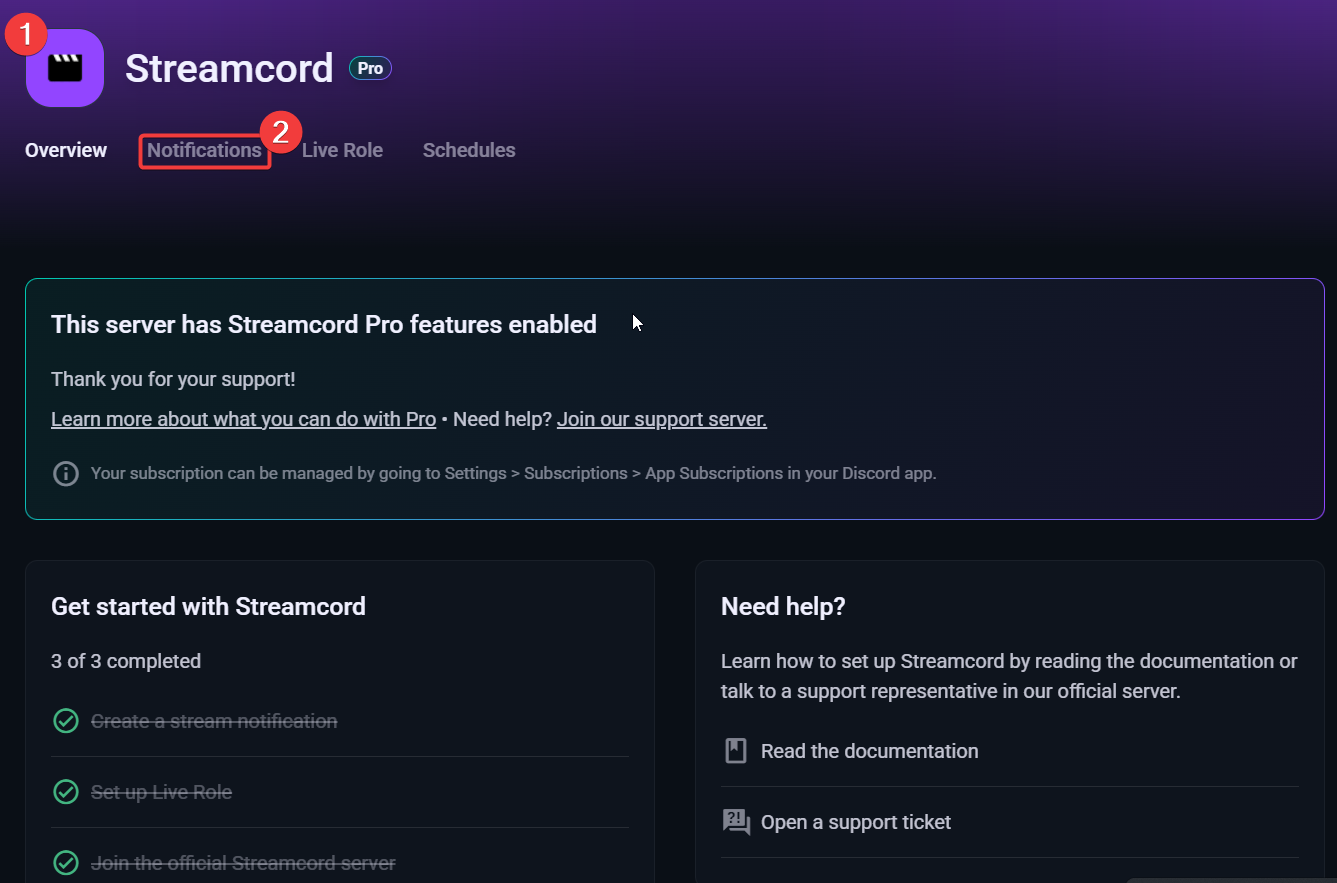
Visit the Streamcord Dashboard and choose your server from the list.
Click the Notifications tab.
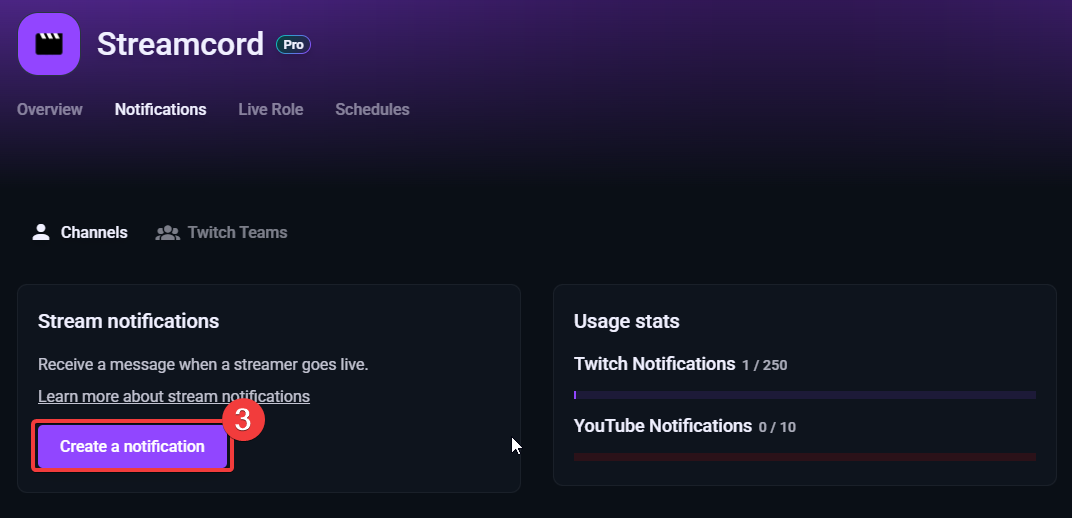
- Click Create a notification.
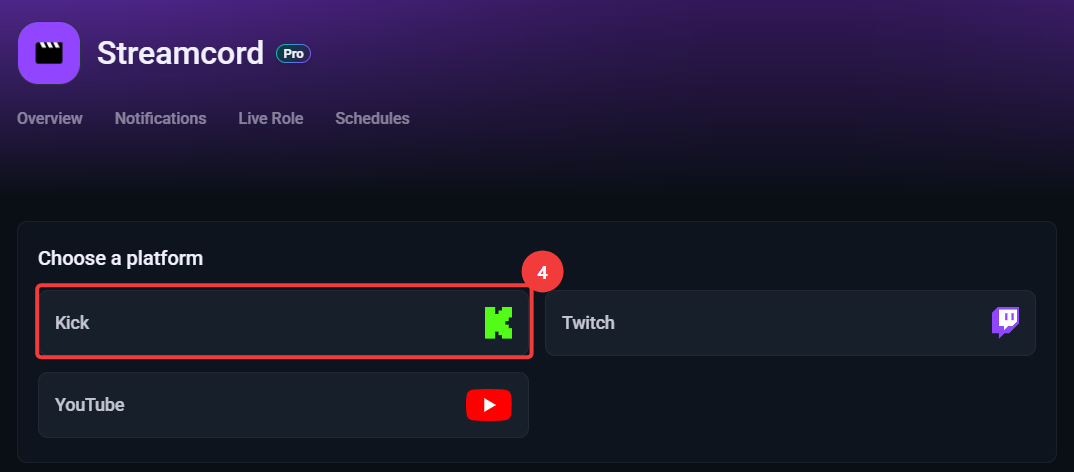
- Under Choose a platform, select Kick.
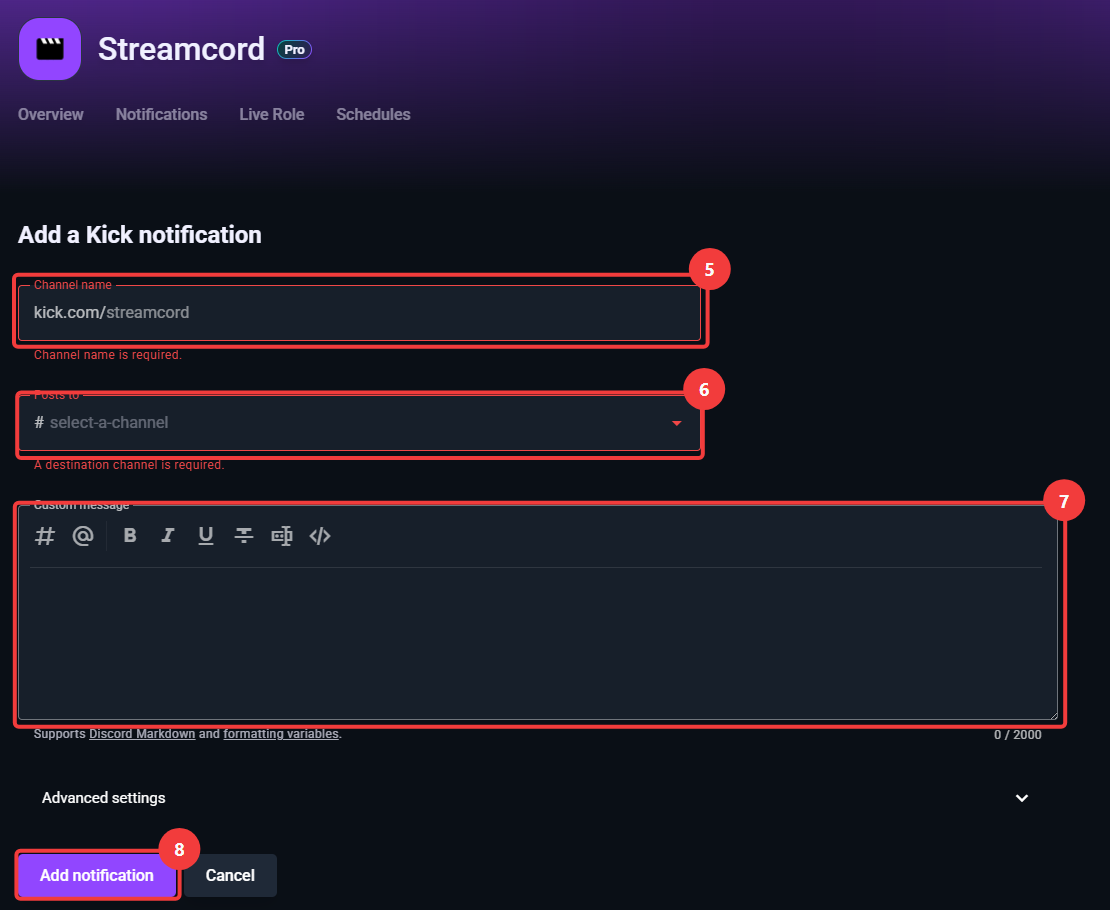
In the
Channel namefield, enter the Kick channel's username as it appears in their page URL.TIP
For example, for
https://kick.com/streamcord, the channel name would bestreamcord.In the
Posts tofield, select the channel you want notifications to be sent to.In the
Custom messagefield, enter the message you want to use for the notification.TIP
The message supports Discord Markdown and formatting variables.
Click the Add notification button at the bottom of the page.
TIP
Congrats, you've just added a Kick notification!
INFO
Notification not showing up? See Common Issues for the most frequent causes.
More Information
Variables
- Supports variables to display information about the streamer.
Mentioning Users and Roles
- Supports mentioning roles.